
Printing
How to Print Coloring Pages: A4, US Letter, Phone and Computer Guide
by Micheal Clark
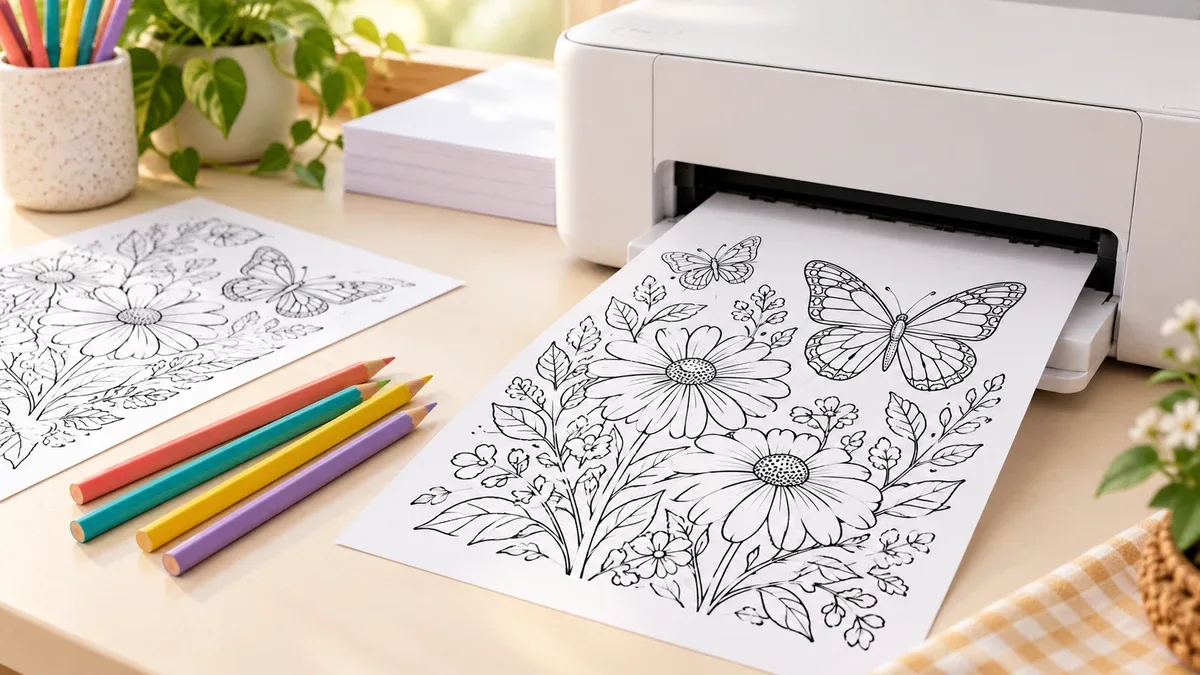
Printing a coloring page should take one minute. Then the edges get cut off, the lines look blurry or the page prints tiny. If that sounds familiar, you are not alone, and you can fix every one of those problems in a few clicks.
Quick answer: Download the original PDF or the largest image. Select the paper size in your tray, choose Fit, and check the preview. Then print one test sheet. If it looks good, print the rest.
This guide shows the exact steps for Windows, Mac, Chromebook, iPhone, iPad and Android. It also explains A4 versus US Letter, the scaling options that confuse most people and the ink and paper settings that keep outlines crisp.
Need pages to print right now? Visit the All Coloring Pages homepage, or start with our Minecraft coloring pages.
In this guide
Quick printing checklist
Run through this list before every print. It takes about thirty seconds, and it prevents most wasted pages.
Download the original PDF or the largest image. Never use a screenshot.
Load your paper, then select the same paper size in the print dialog.
Match portrait or landscape to the artwork.
Choose Fit, unless the file already matches your paper.
Check the preview. You should see every outer line.
Pick one copy, one page and normal or best quality.
Print one test sheet before you print a stack.
Check the outlines, then print the rest.
For a normal coloring session, plain white paper and normal quality work well. You can upgrade either one after you see the test sheet.
Choose the right file before you print
Your print can only look as sharp as your file. So start there.
Look for a Download, PDF or Print button beside the artwork. The picture you see on a webpage is often a small preview. If you save that thumbnail, the lines turn soft or jagged on paper.
PDF, PNG or JPG: which one should you use?
A PDF keeps the page layout the way the artist planned it, so it is usually the safest choice. However, a PDF can still hold a low resolution picture. Open it, zoom in to 200 percent and check that the lines stay smooth.
A PNG works well for black outlines on white, because it keeps edges clean. A JPG also works, but heavy compression can leave fuzzy specks around the lines. When a site offers several sizes, download the largest one.
How many pixels does a sharp page need?
Line art looks crisp at about 300 dots per inch. At that setting, a US Letter page needs roughly 2550 by 3300 pixels. An A4 page needs roughly 2480 by 3508 pixels. A smaller file can still print, but you may notice jagged edges.
You can check an image size in seconds. On Windows, right click the file, choose Properties and open the Details tab. On a Mac, open the file in Preview and choose Show Inspector from the Tools menu.
Why screenshots fail
A screenshot captures your screen resolution, not the original file. It also grabs browser buttons, ads and cropped edges. So always download the real file instead.
Want to try it right now? Open any page from our Minecraft coloring pages collection. Then use that page’s own download button, not the whole collection page.
A4, US Letter and scaling explained
Two paper sizes cover most homes. A4 measures 210 by 297 mm, and most of the world uses it. US Letter measures 8.5 by 11 inches, or 215.9 by 279.4 mm, and people use it mainly in the United States and Canada. Letter is about 6 mm wider and 18 mm shorter than A4.
That small difference causes many cut off edges. A Letter file on A4 paper can lose a little width. An A4 file on Letter paper can lose a little height. Scaling solves both problems.
So follow a simple order. First, tell your printer which paper sits in the tray. Second, choose how the file should fit that sheet.
What you see | What to try | What to check |
|---|---|---|
The file matches your paper and sits inside the margins | Actual size or 100 percent | All outer lines stay visible |
The file uses a different paper size | Fit | The whole drawing fits without stretching |
The preview cuts off the border | Fit or a smaller custom scale | A clear margin surrounds the artwork |
A small drawing looks too small | Custom scale, with care | The enlarged lines still look sharp |
You need an exact template size | Actual size | The paper holds the full template |
Adobe Acrobat offers four scaling choices. Fit scales a page up or down to the printable area. Actual size keeps the original dimensions, but it can crop anything that does not fit. Shrink oversized pages only reduces big pages, and Custom scale lets you type a percentage. Read the details in Adobe’s guide to page size and scaling.
For coloring pages, Fit is the safest default. It protects the border and keeps the proportions. Actual size makes sense only when the file already matches your paper.
Most printers also leave a small unprintable margin, so a white edge does not mean you chose the wrong setting. Borderless printing works differently. Canon’s printer manual explains that it enlarges the image so it extends slightly past the paper, which means some edges may not print. Use borderless only when your printer supports your paper size and the preview still shows the whole design.
Print from a computer
Windows
Save the file somewhere easy to find, such as Downloads.
Open it in a PDF reader or the Photos app.
Press Ctrl and P.
Select your physical printer. A Microsoft Print to PDF choice saves a file instead of printing paper.
Set the paper size, orientation, page range and copies.
Choose Fit or your preferred scale, then check the preview.
Print one sheet and inspect the outlines.
Mac
Open the file in Preview.
Press Command and P.
Choose your printer and paper size.
Open the Preview menu in the dialog if you need to change scaling, then select Scale to Fit.
Check the preview and print one sheet.
Chromebook and browser printing
Press Ctrl and P in Chrome, then open More settings. Choose the right paper size, set Margins to Default and turn Headers and footers off. That last switch removes the page title, date and web address from the corners.
Still, print the downloaded file whenever you can. Printing a webpage adds menus and other clutter, and it gives you less control over scaling.
Print only the pages you need
Some downloads contain many pages. In that case, type the page numbers you want in the page range box. Then check the preview again, because the printed page labels can differ from the viewer’s page numbers.
Print from an iPhone or iPad
Open the downloaded file in an app that supports printing, such as Files, Safari or Photos.
Tap Share or the actions button, then tap Print. You may need to scroll the list.
Choose your AirPrint printer.
Pick the number of copies and the page range.
Pinch the preview to check the artwork, then tap Print.
Your iPhone or iPad and your printer must use the same WiFi network. Apple explains the steps and the AirPrint requirements in its AirPrint printing guide. Apple also notes that a printer connected only by USB or Bluetooth cannot use AirPrint.
No Print option? Try opening the original PDF in a different app. If the printer does not appear, restart both devices and check the printer’s WiFi connection. Your printer maker’s app can also offer another way to print.
Print from Android
Download the file and open it in an app that supports printing, such as Google Drive or Chrome.
Open the menu, tap Share and then tap Print.
Choose your printer, paper size and page range.
Check the preview, then tap the print button.
Your phone needs a print service first. Many phones list printing under Settings, Connected devices, Connection preferences and Printing. The exact names change between devices and Android versions. Google lists the steps in its Android printing help.
Chrome on Android has one more trick. Open the menu, tap Share and then Print. You can also choose Save as PDF, which gives you a clean file you can print from a computer later.
What if you have no wireless printer?
You still have options. Save the page as a PDF, then email it to yourself and print from a computer. You can also copy it to a USB drive or send it to a print shop. We cover that route below.
Paper, ink and quality settings
Choose paper for both your coloring tool and your printer. Plain printer paper suits crayons and light pencil work. A smoother, heavier sheet can suit detailed pencil work, but check your printer’s supported weight first. Our guide to the best paper for coloring pages explains how to choose.
Print quality
Start with Normal or Best. Microsoft’s printing support advises turning off Economy, Draft and Toner saver modes when lines look faded. Draft mode can make thin outlines look pale, so save it for text pages.
Color ink, grayscale or black ink only
Grayscale and Black ink only do not always mean the same thing. Some printer drivers mix a little color ink into gray tones, and that can leave a faint tint on the outlines. If you want pure black lines and lower ink use, look for a Black ink only choice in your driver.
Inkjet or laser?
Both work. Laser toner stays put when you color over it. Inkjet ink is water based, so wet markers can smear it if the print has not dried fully. Wait a while before you color, and test a corner first.
Print settings cheat sheet
Setting | Best choice for coloring pages | Why it helps |
|---|---|---|
Paper size | The size in your tray | Prevents shifted or cropped drawings |
Scaling | Fit | Protects the outer border |
Orientation | Match the artwork | Avoids sideways prints |
Quality | Normal or Best | Keeps thin lines dark |
Color mode | Black ink only | Saves color ink and keeps lines neutral |
Pages per sheet | 1 | Keeps details large |
Margins | Default | Keeps the printer inside its safe area |
Fix common printing problems
The drawing is cut off at the edges
Check the paper size and orientation first. Then choose Fit and look at the preview. However, if the downloaded image already misses an edge, scaling cannot bring it back. Go back and download the original file.
The picture prints too small
Make sure the layout shows one page per sheet. Next, look for a big blank border inside the file. Fit scales the whole page, including that border, so the drawing may not grow as much as you expect. Try a custom scale of 110 or 120 percent and check the preview.
The page prints sideways
Switch the orientation in the print dialog. Portrait suits tall drawings and landscape suits wide ones. The preview shows you the answer before you waste paper.
One picture prints across several sheets
Your printer is tiling or printing a poster. Set the scaling to Fit and make sure the paper size matches the file. Also confirm that you did not select a poster or multi page option.
The outlines look blurry
Open the original file and zoom in. If it looks blurry there, a higher print quality will not help, so download a better source. If the file looks sharp, raise the print quality. Also run your printer’s cleaning routine when lines look broken.
The lines look pale
Turn off Draft, Economy and Toner saver modes. Then try Best quality. If the lines stay faint, check your ink or toner level and run a nozzle check.
The printer gives you a blank page
Check that you picked a page with artwork and the right page range. Then print a simple text document. That test shows whether the problem comes from the file or from the ink, toner or printer.
Your phone cannot find the printer
Confirm that both devices use the same network and that the printer supports your printing method. A guest network can stop devices from finding each other. Follow the printer’s own setup steps before you change any network settings.
A web address or date appears on the page
Turn off browser headers and footers, or print the downloaded PDF instead. Those extras come from printing a webpage, not from the drawing.
Markers smear the printed outline
Let the print dry, and test your marker on a corner. Inkjet ink can run under water based markers. A laser print, a waterproof ink setting or a different marker usually solves it. Our comparison of crayons, colored pencils and markers shows which tool fits each page.
Print for a classroom, party or group
Printing many copies takes a little planning. First, print one test page and check it with the exact tool you plan to hand out. Then print the full set.
Count your guests and add a few extra pages for mistakes.
Use a PDF with a clear name so you can find it again.
Choose single sided printing if children will use markers.
Keep a spare stack of plain paper under each page to protect tables.
Store the original file in a folder named by topic and date.
Also check the artwork’s usage terms before you make classroom packs or event handouts. Free access does not always allow every kind of sharing. You can read our terms and conditions for this site.
Save ink and paper
Print one test page, not a full batch.
Choose Black ink only for black outline pages.
Use Normal quality instead of Best when the file looks sharp.
Print only the page range you need.
Print two small pages on one sheet only for quick activities, because details shrink.
Do not use Draft mode for coloring pages, because it can make lines too pale.
Print without a home printer
A local print shop, library or school office can help. First, check how they accept files, which paper they offer and what they charge. Then bring or send the original PDF, not a screenshot.
Ask for the right paper size, black outlines, one page per sheet and single sided printing. If you need many copies, request one sample before the full batch. Also tell the shop which coloring tool you plan to use, so they can suggest suitable paper.
What to do after you print
Once the pages are printed, you can color them with the tool you enjoy most. Our guide on how to color with colored pencils helps beginners get smooth results. When you finish a page, see what to do with finished coloring pages for twelve easy craft ideas.
How we wrote this guide
We checked printer settings against official help pages from Adobe, Apple, Google, Canon and Microsoft. We also compared our steps with the top ranking printing guides, and we added fixes they skip, such as pixel sizes, tiling and marker smearing. Printer menus change often, so your screen may use slightly different names. Last reviewed in October 2026.
Common questions
What is the best format for printing coloring pages?
A PDF is usually best, because it keeps the page layout. A large PNG also works well for black outline art. Avoid small JPG thumbnails and screenshots.
Should I use Fit or Actual size?
Use Fit for most coloring pages. It protects the border when your paper size differs from the file. Use Actual size only when the file already matches your paper and you need exact dimensions.
Can I print a Letter coloring page on A4 paper?
Yes. Select A4 as the loaded paper and choose Fit. The proportions stay the same, but the drawing may change size and the margins may look different.
What resolution should a coloring page have?
Aim for about 300 dots per inch. That means roughly 2550 by 3300 pixels for Letter and 2480 by 3508 pixels for A4.
Can I print two coloring pages on one sheet?
Yes, if your print dialog offers multiple pages per sheet. It works well for small activities, but it shrinks the details. Always check the preview first.
Do I need a color printer?
No. A black and white printer prints outline coloring pages just fine. A color printer also works, but the drawing does not need color ink.
Is inkjet or laser better for coloring pages?
Both work. Laser toner resists smearing when you add wet markers. Inkjet ink can run, so let the page dry and test a corner first.
Can I print coloring pages from my phone without a wireless printer?
Yes. Save the page as a PDF, email it to a computer and print from there. You can also use a USB drive or a print shop.
Can teachers print coloring pages for a class?
Often yes, but the rules depend on the artwork’s license. Read the usage terms first, and keep the source details with your lesson notes.
What should I check before printing a whole pack?
Check the paper size, the full outline, the line darkness, the page range and the number of copies. Then color a small part of the test sheet with your favorite tool. That quick test can save you a whole stack of wasted pages.